









Download Center / Document Guide
ESYSUNHOME App Manual: Setup & Energy Monitoring
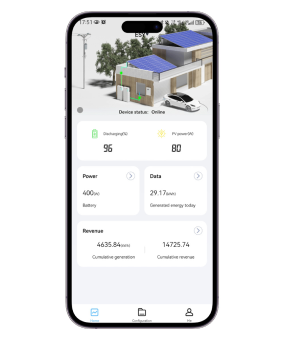
The ESYSUNHOME App manual explains how end users register an account, connect a device and view the operation of an ESYSUNHOME inverter system. It also describes energy statistics, operating modes, electricity-price settings and account security.
Document and Version Information
The linked English PDF has nine PDF pages and is approximately 0.84 MB. Its filename says v2.1_Dec2025, while the cover inside the document says V-2.0. Both identifiers are recorded here so you can recognise the file accurately. Screen labels and available functions can differ by app version, device and region.
Account and Device Setup
- Use the official App download links on the ESY App page and register with your email address.
- In My Devices, choose Add Device and follow the manual’s Wi-Fi dongle QR-code instructions.
- Confirm the device name and time zone, then follow Match Network to configure the connection.
- After pairing, check the device status and the energy-flow view. The manual also explains how to reopen Match Network if a device is offline.
Monitoring and Battery Schedules
The monitoring screens show PV generation, grid import and export, battery activity and household load. Power charts and daily, monthly and yearly statistics help distinguish the instantaneous power flow from accumulated energy use.
The manual describes regular, emergency and electricity-sale modes, plus scheduled battery energy management. It also covers import and export tariffs, the minimum discharge state of charge, and feed-in restrictions. Availability depends on the system configuration; have your installer confirm any setting that affects the site’s permitted grid export.
Common Questions
Why might a schedule fail to save?
The manual states that configured time periods cannot overlap. Review the time slots before saving.
Where are account security settings?
Open Settings from the Me page, then Account & Security. The manual describes password and email changes and account closure.
Keep the complete PDF available for its illustrated screens, and use the official support channel for device-specific issues.